
0) First: which “Tap” do you actually have?
If you have Tap IP (most common in appliance rooms)
Network controller: one Ethernet run to the table (typically PoE).
Works as a controller for Microsoft Teams Rooms and Zoom Rooms.
Picture (Tap IP on network / PoE concepts):
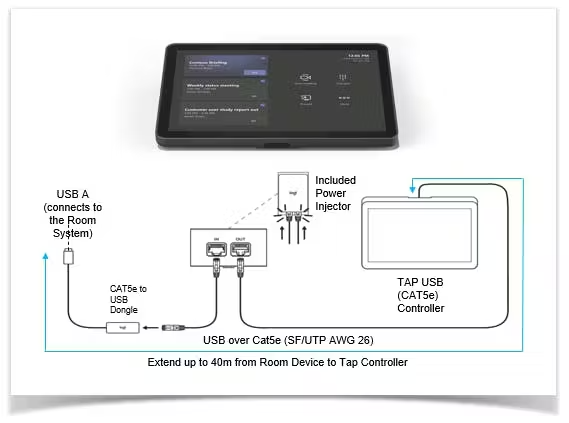
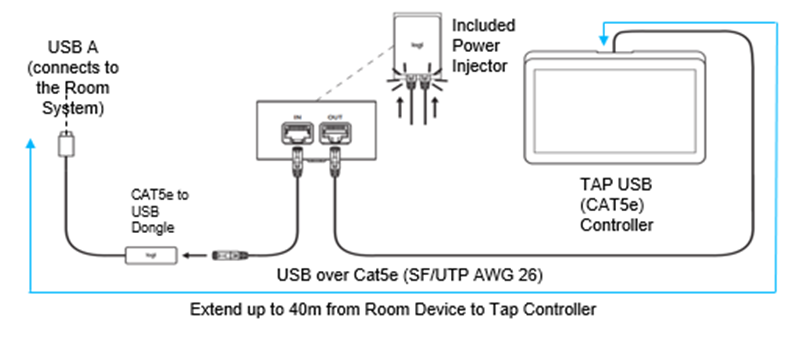
If you have Tap (USB) (less common for appliance, but it exists in some kits)
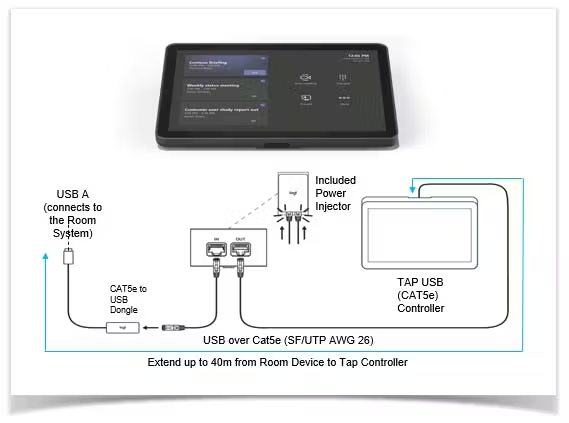
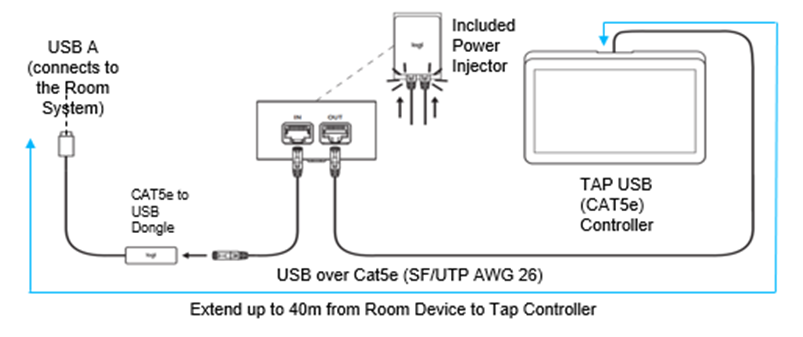
USB controller that must get USB data to the Rally Bar (or room compute), and often needs the Cat5e Kit to extend USB + power up to 40m.
Picture (Cat5e Kit / USB-over-Cat components):
1) The rule that drives everything: switching providers = reset
Switching between service providers requires a reset (toggling without reset is not supported).
If the device is currently Teams Rooms on Android, Logitech notes it must be factory reset to change service providers.
So the clean process is always:
Reset → choose provider → sign in → verify controller wiring
2) Zoom → Teams (appliance)
Step 1 — Factory reset the Rally Bar (recommended / cleanest)
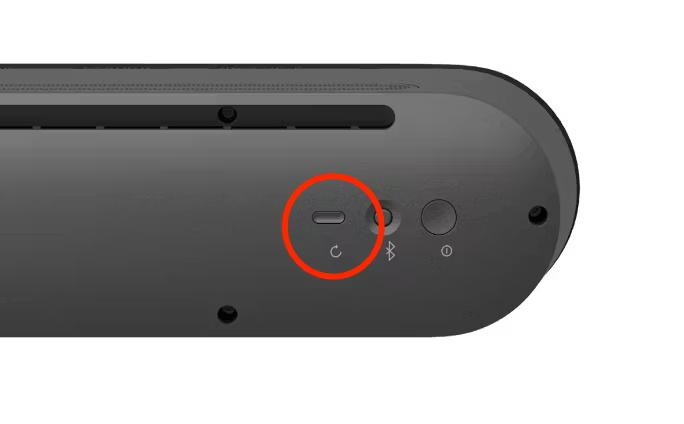
Use the on-device CollabOS reset flow (from the room display / device settings). Logitech’s reset guide also covers the physical reset button method if you can’t access menus. (Power down, Hold Reset button 15 seconds while powering up)
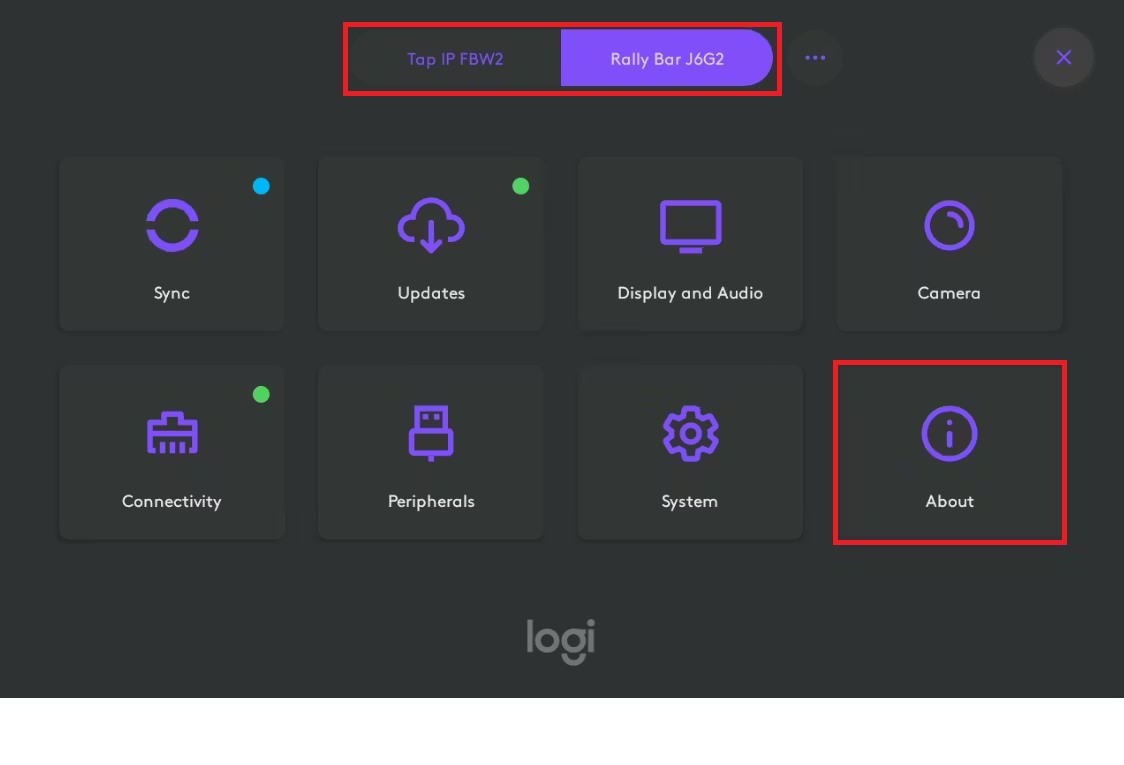
Picture (CollabOS settings context):
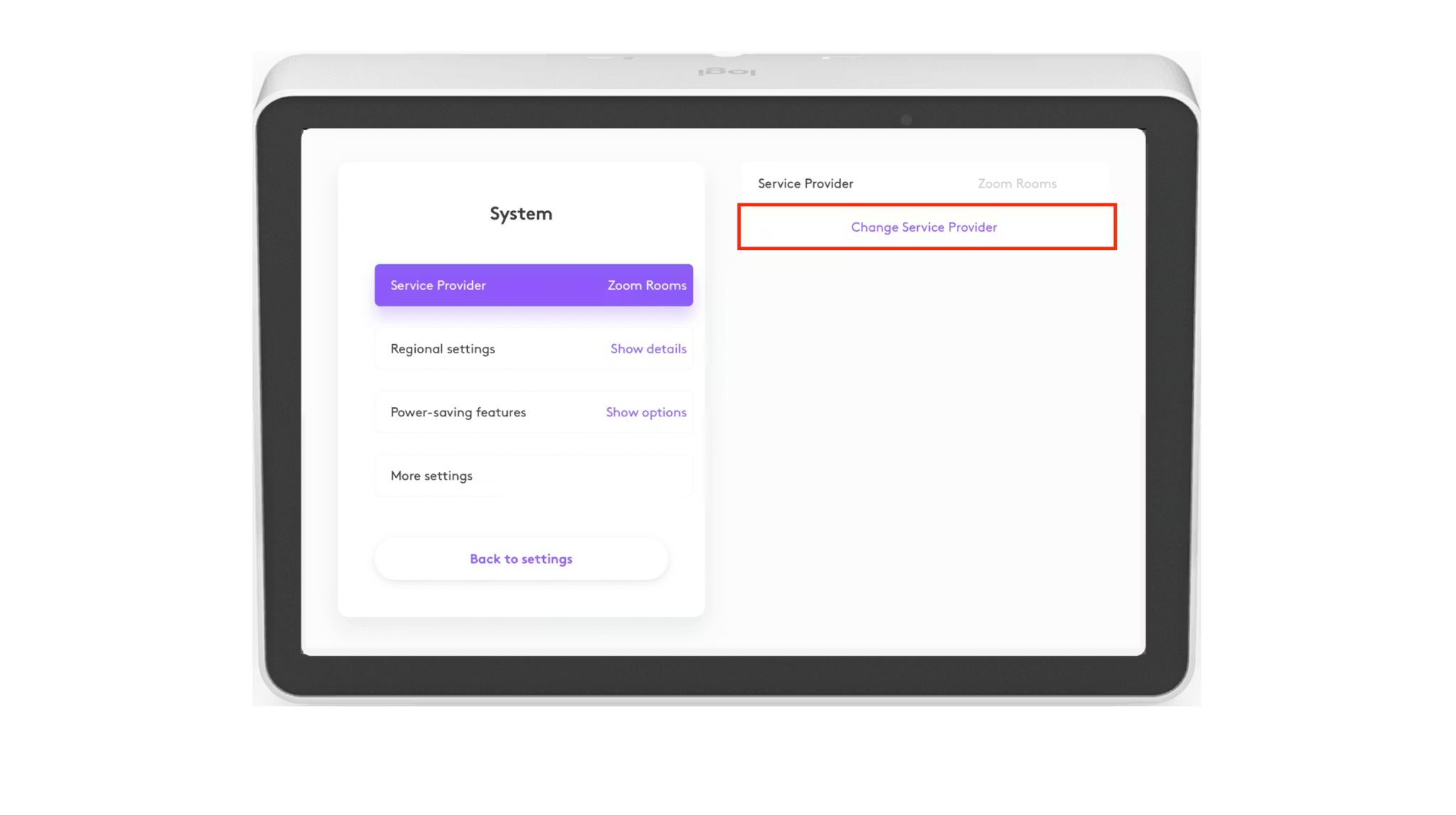
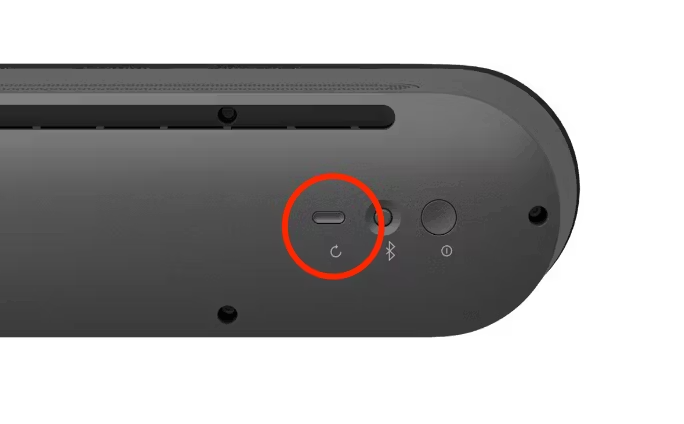
Step 2 — On first-time setup, select Teams as the provider
On the Rally Bar setup flow / CollabOS Service Provider screen, choose Microsoft Teams Rooms.
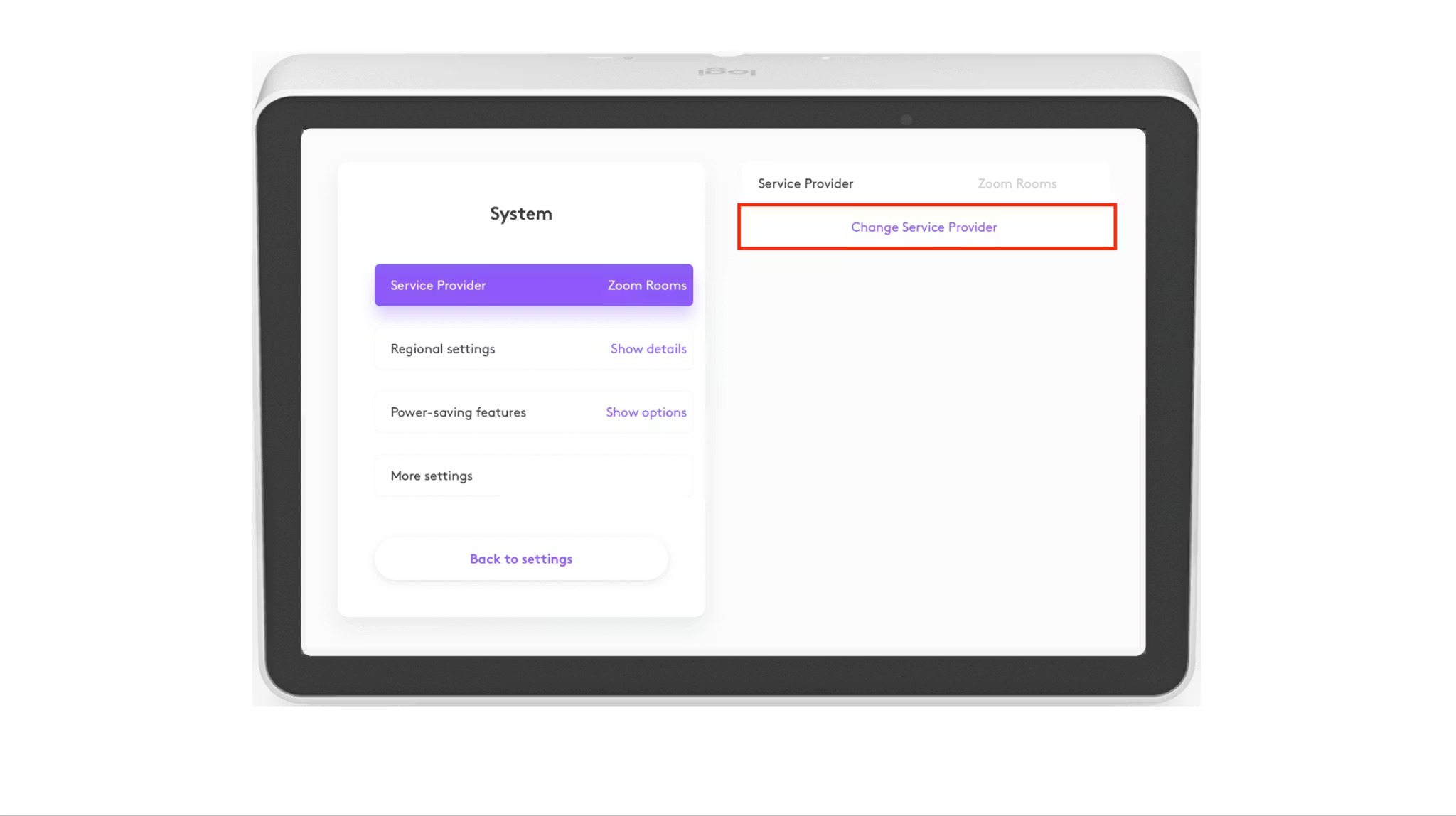
Picture (Service Provider selection / change screen):
Step 3 — Teams wiring: Tap IP can be on its own network line (this is what you want)
This is the “normal” appliance topology:
Rally Bar: Ethernet to switch (your front-wall drop)
Tap IP: separate Ethernet to switch at the table (PoE switch port or PoE injector)
No USB tether required between Tap IP and Rally Bar. Tap IP is IP-based and designed for PoE deployment.
Picture (Tap IP network connection options):
Practical note (what techs actually care about):
Put Tap IP and Rally Bar on the same VLAN/subnet unless you know your routing/ACLs are friendly—discovery/onboarding is simply less painful that way. Logitech’s own Relay/pairing guidance calls out same-subnet expectations for Teams/Zoom user setups.
Step 4 — Sign into Teams Rooms
Complete Teams Rooms sign-in with your room account (resource account + appropriate licensing). (Microsoft side)
Picture (Teams Rooms on Android sign-in example):
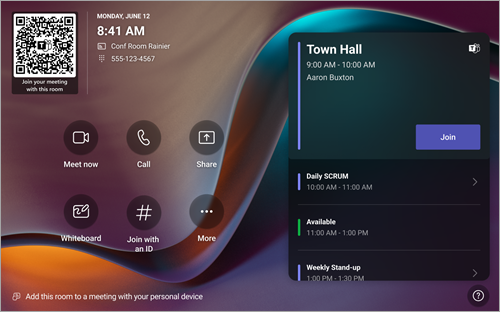
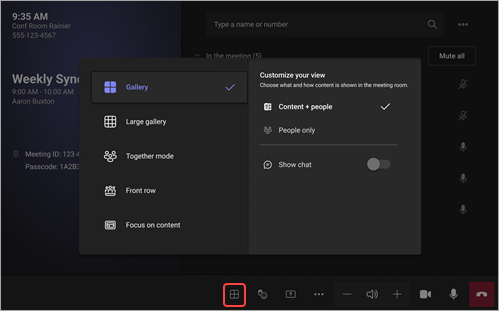
3) Teams → Zoom (appliance)
Step 1 — Factory reset is mandatory when coming from Teams Rooms on Android
Logitech explicitly notes: Teams Rooms on Android must be factory reset to change service providers.
(Also consistent with “provider switching requires reset”.)
Picture (CollabOS reset context):
Step 2 — Select Zoom as provider during setup
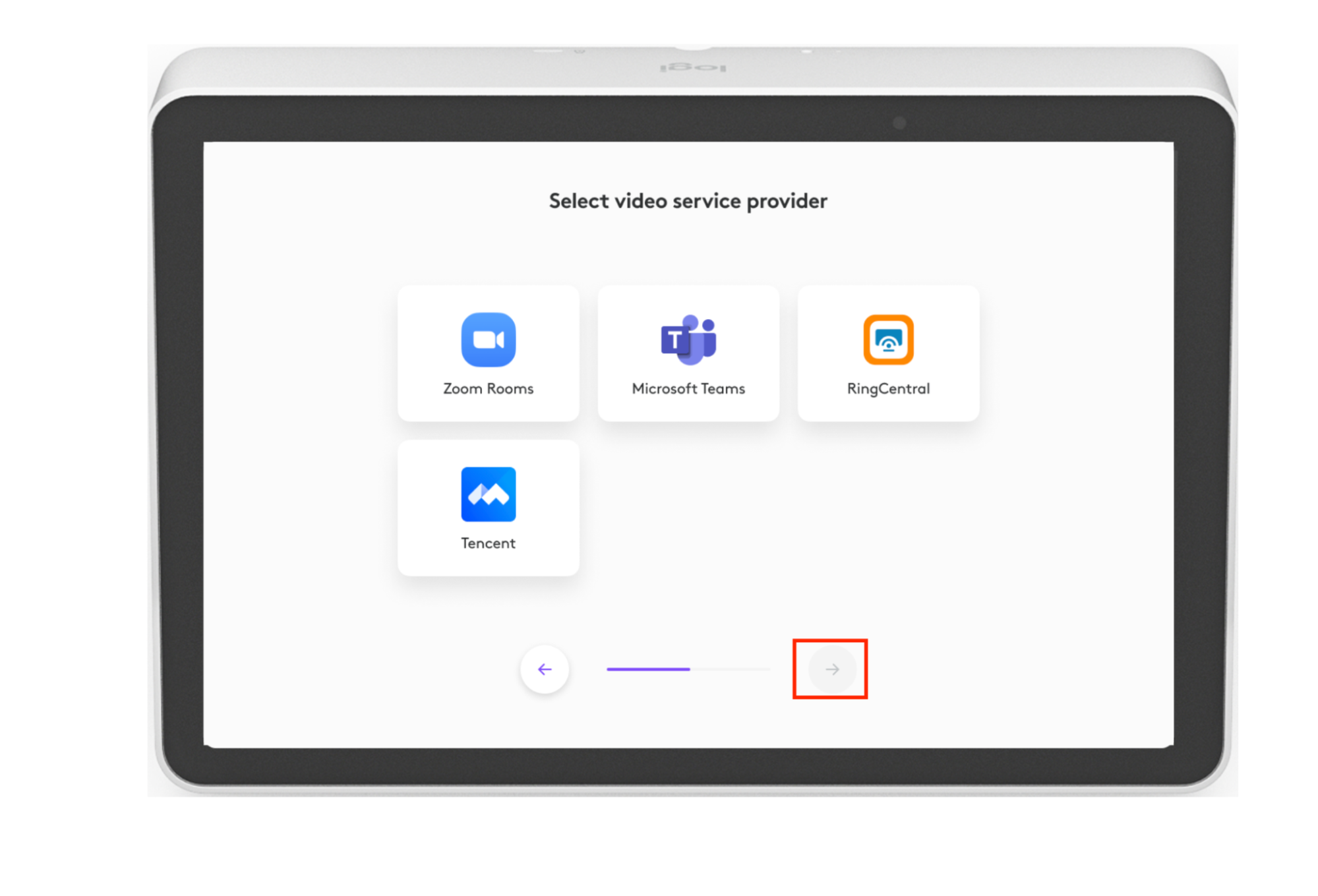
On the Service Provider screen, choose Zoom Rooms.
Picture (provider selection):
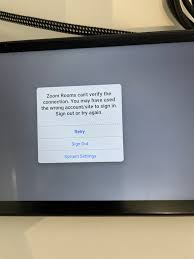
Step 3 — Sign into Zoom Rooms (Activation Code flow)
Use the Zoom Rooms Activation Code method.
Picture (Zoom Rooms activation code screen example):
Step 4 — Tap IP wiring stays the same idea
Tap IP: Ethernet + PoE to the table
Rally Bar: Ethernet at the front wall
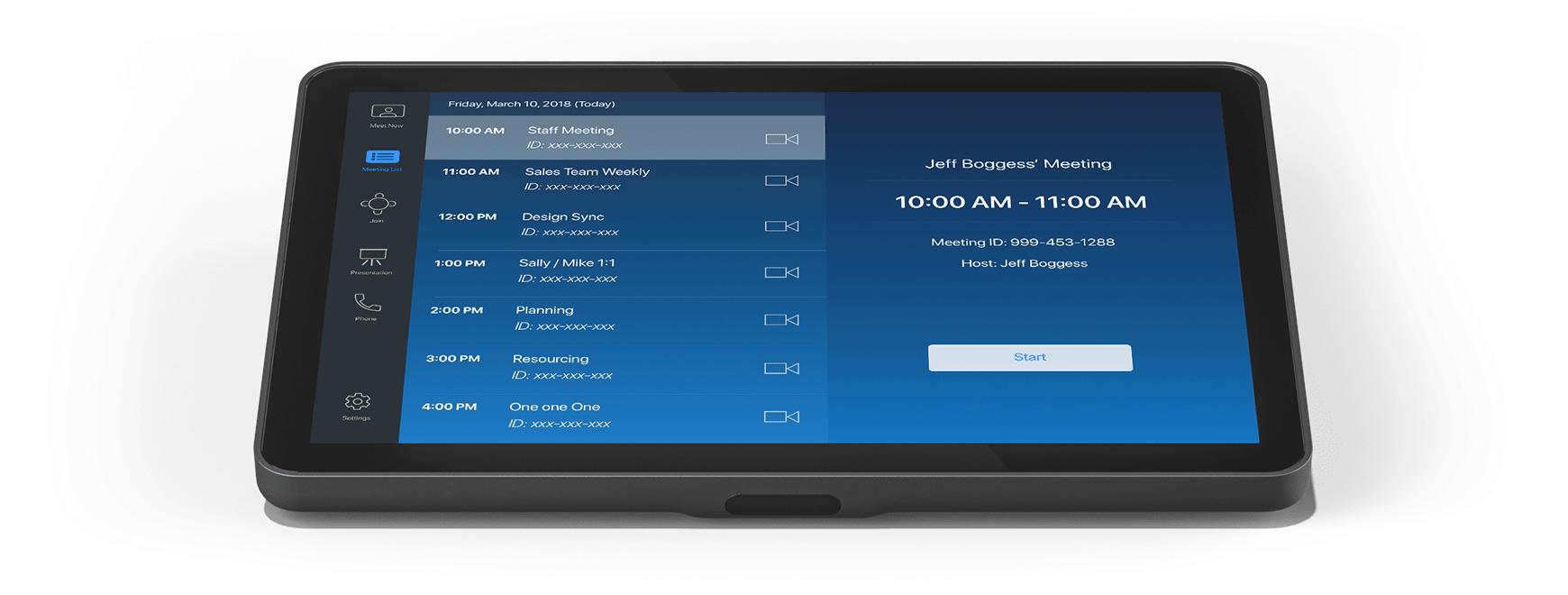
Tap IP is positioned by Logitech as a PoE network controller used across room platforms.
Picture (Tap IP over PoE):
4) When the USB↔CAT “dongles” are used (and when they are NOT)
You use the USB-to-Cat “dongle kit” only with Tap (USB), not Tap IP
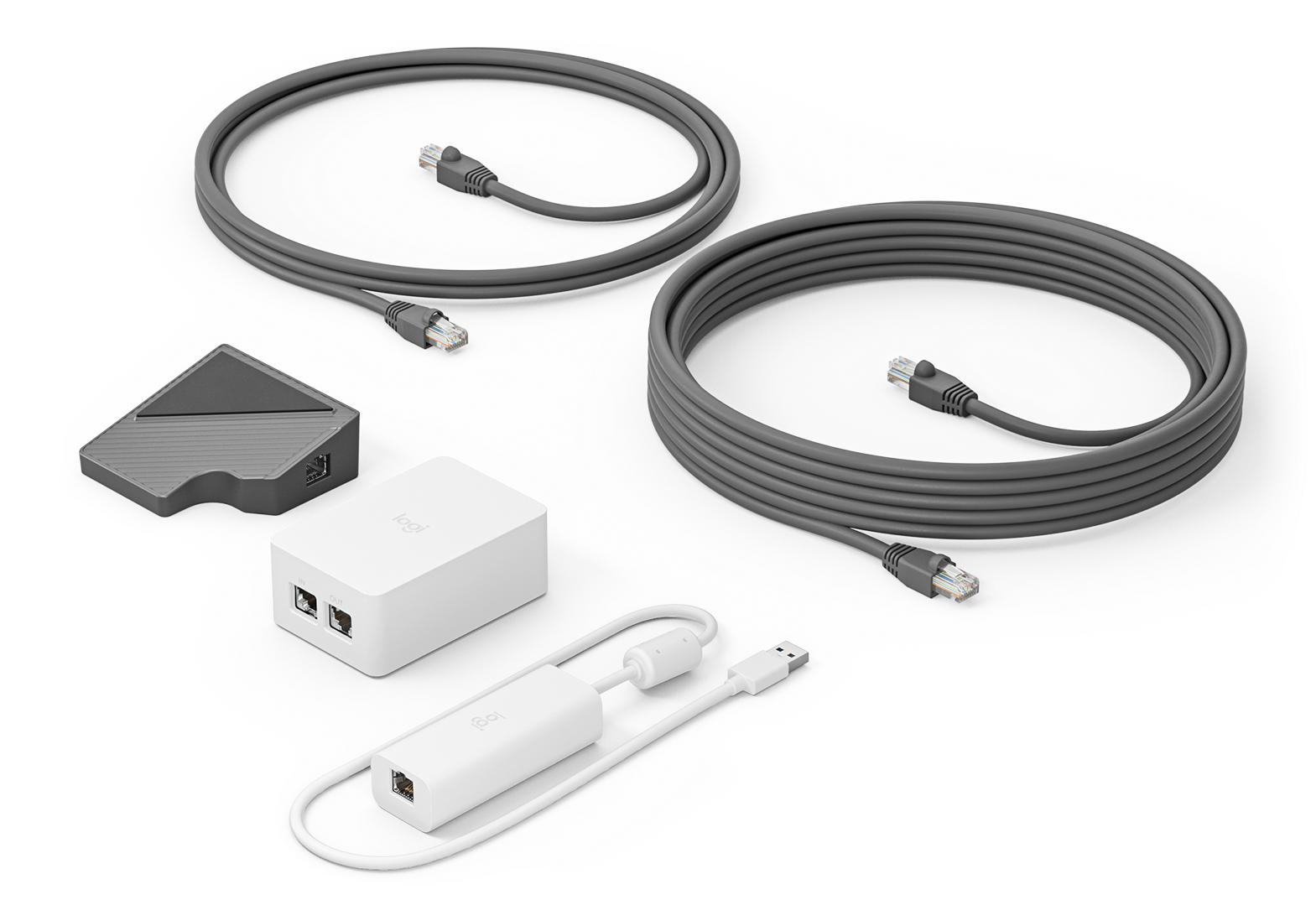
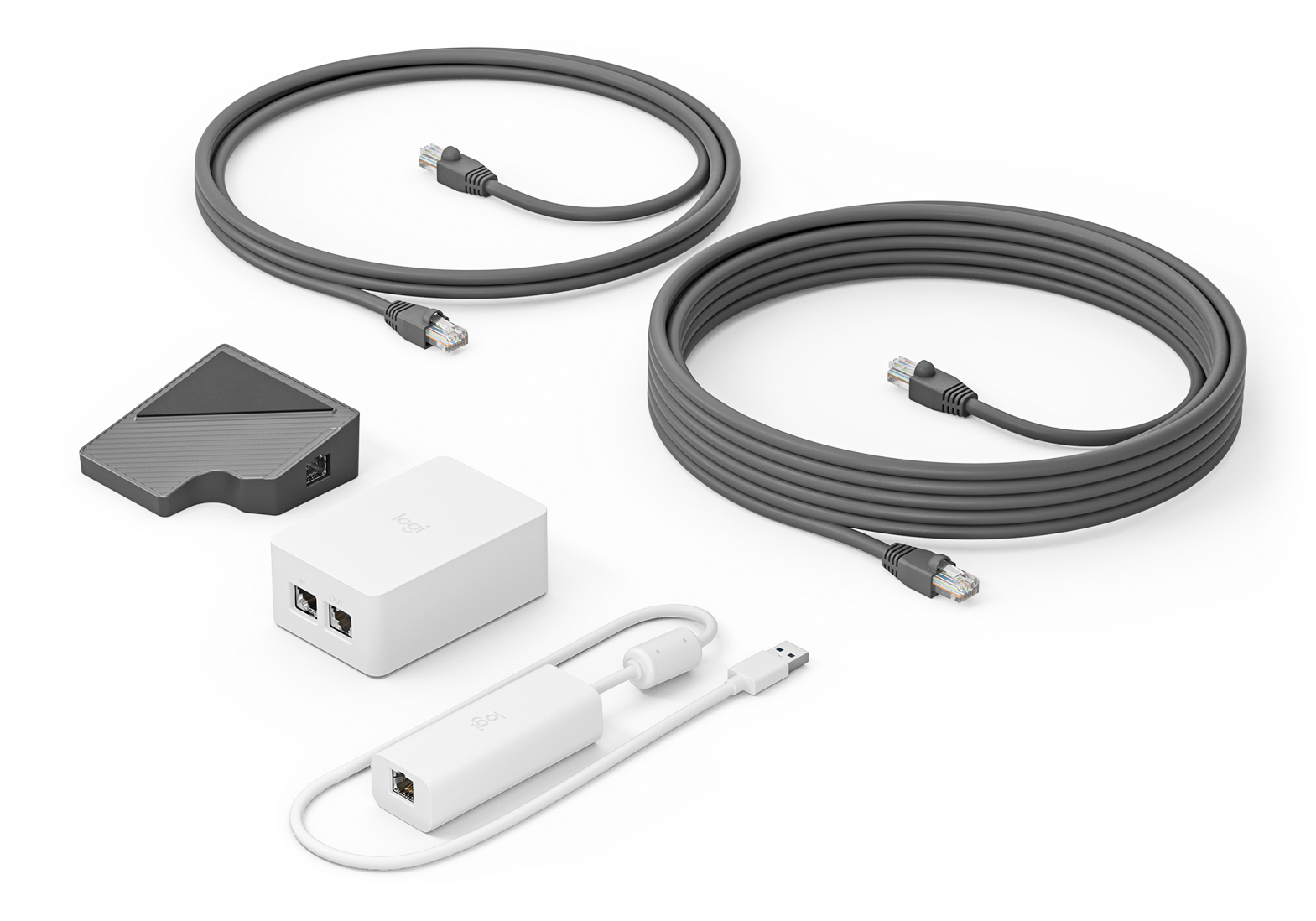
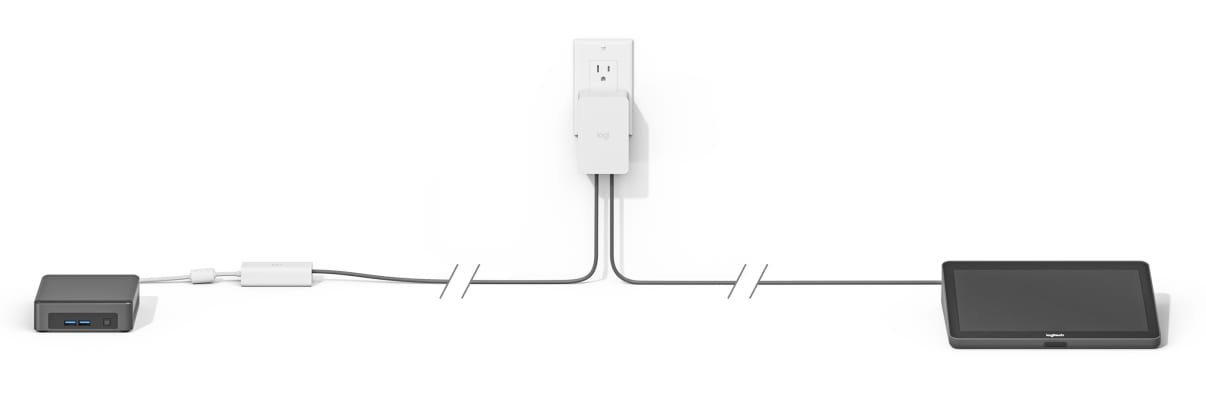
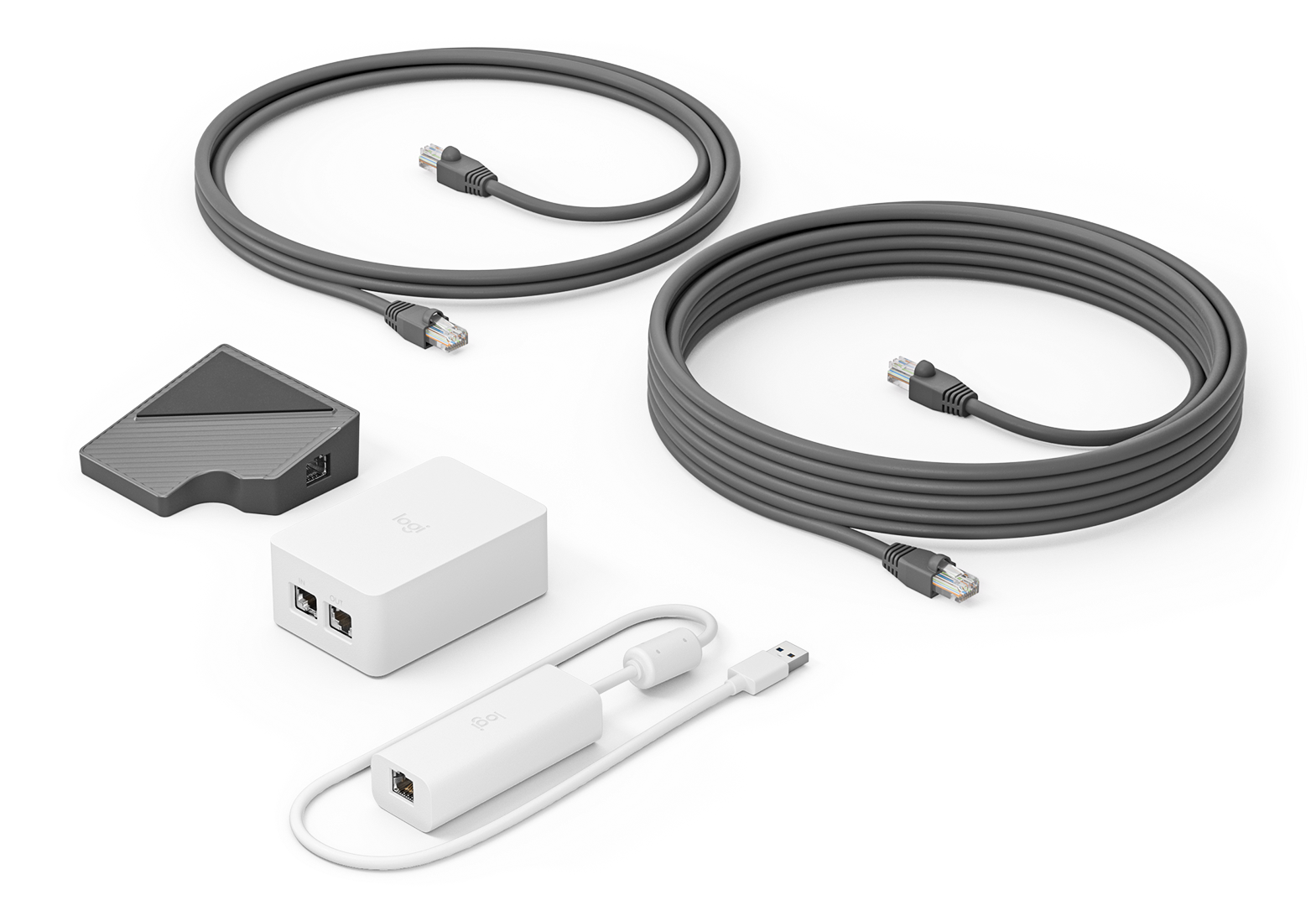
That kit is Logitech’s Cat5e Kit for Tap: it’s a USB-over-Cat5e extension that carries USB data + power over one category cable so you can place Tap up to ~40m away.
Picture (what the kit physically looks like):
The “how” (in practical install terms)
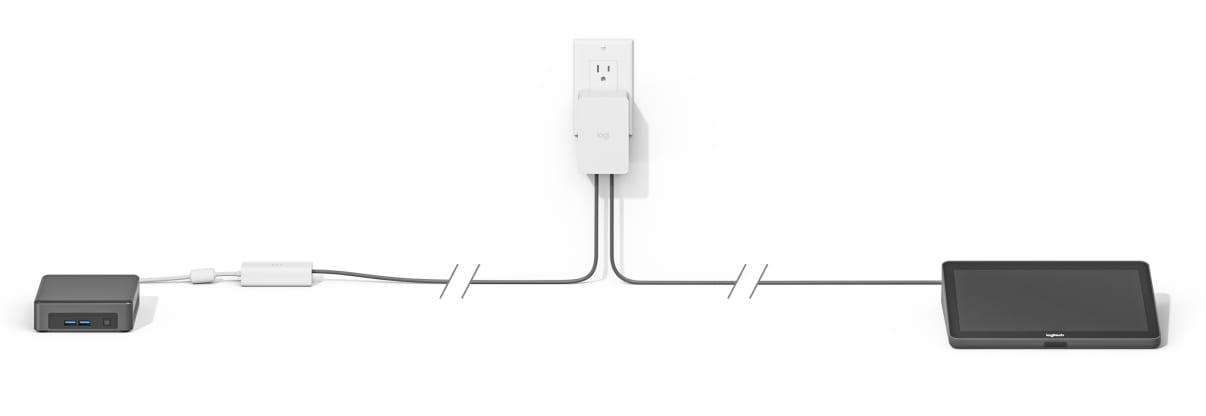
At the Rally Bar (front wall): the dongle transceiver plugs into a USB port on the Rally Bar.
Between wall and table: you run Cat5e/Cat6 (up to the kit’s supported distance).
At the table: the Cat cable lands on the Tap receiver, and that receiver connects to the Tap and supplies power/data to it.
Picture (typical “front wall ↔ table” Cat5e Kit layout):
When to choose which
Tap IP (Ethernet/PoE): choose this when you have a clean network drop to the table and want the simplest long-run deployment.
Tap (USB) + Cat5e Kit: choose this when the controller must be USB-connected but the run is too long for a normal USB cable, and you want a single-category-cable solution.
5) Quick “tech on-site” checklist (what usually breaks)
Provider allow-list / firewall: if sign-in fails, confirm DNS/time/proxy rules (rooms are sensitive to time drift).
PoE: Tap IP needs PoE (PoE switch or injector).
Same subnet (recommended): keeps discovery/onboarding smoother (especially when trying to manage devices as a “set”).
Cat5e Kit mix-ups: don’t try to use the Cat5e Kit logic with Tap IP—Tap IP doesn’t need it.